
Learn how to create and manage lists in Cognism. Add contacts from search or the Chrome extension and prepare them for export or CRM sync.
Lists help you organise contacts so you can export them or sync them to your CRM.
Prerequisites
Before you start, make sure:
- You have access to Cognism’s Sales Intelligence platform
- You are logged into the Cognism web app
- You have permission to create and manage lists
Create a new list from the Lists page
- Open the Cognism web app.
- Select Lists from the left-hand navigation.
Navigate to the My Lists tab.
Click Create list in the top-right corner.
- Enter a list name.
- (Optional) Add a short description.
Select Create list.
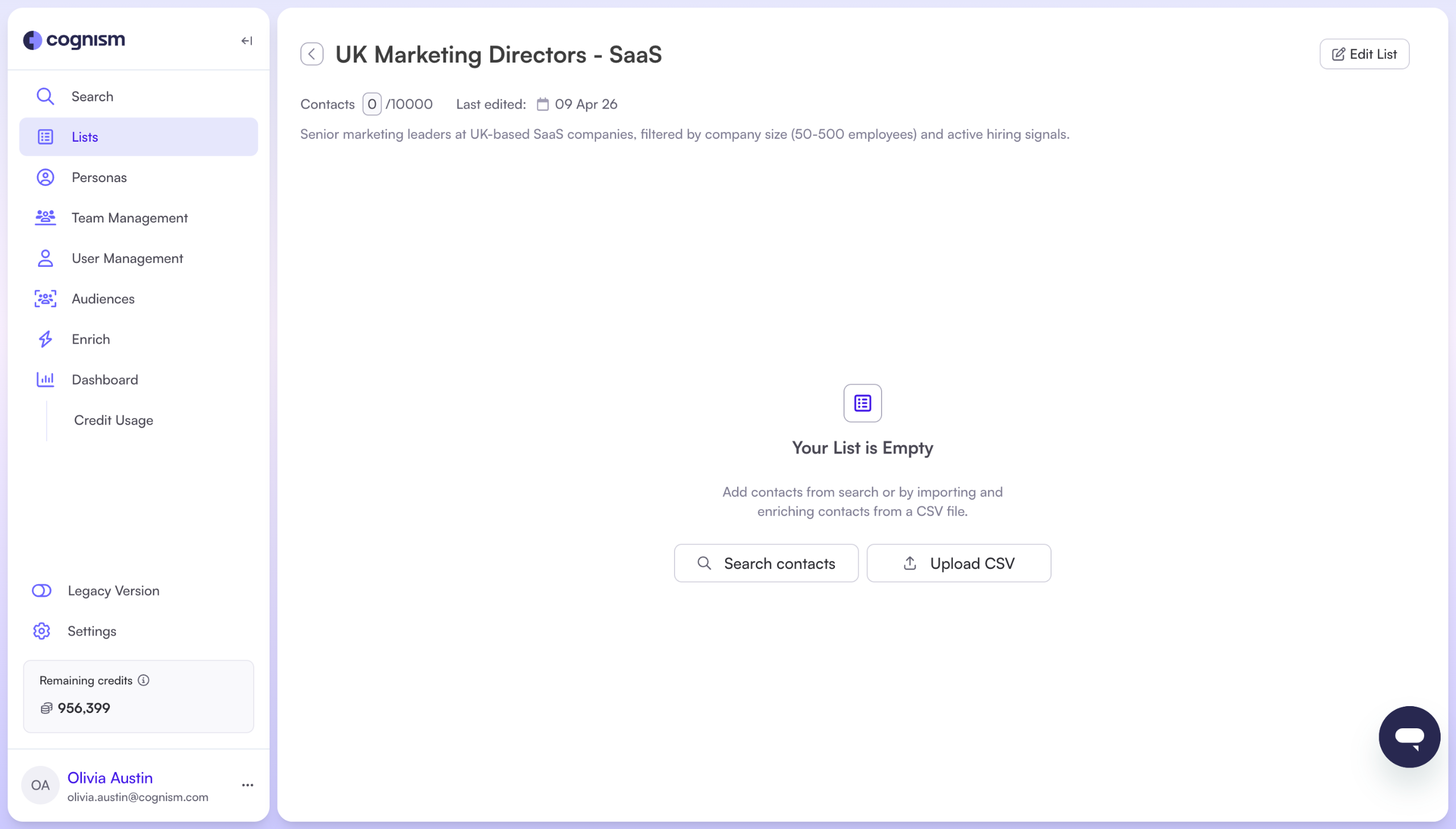
Your list is created. It may be empty until you add contacts.
Add contacts to a list from search results
You can add contacts to a list from the search results in the Sales Intelligence web app.
Note: At present, you can only add contacts to lists. You cannot add companies.
- Open Search from the left-hand navigation.
- Select the Contacts tab.
- Use the filters to define your search criteria.
- Review the contact results.
Select up to 50 contacts at a time, or manually select individual contacts.
You can:
- change the page view to display up to 100 contacts per page,
or click the arrow dropdown at the top of the results table and select all contacts for export to a list.
Please be mindful of the number of records selected, as revealing/exporting large numbers of contacts may consume credits depending on your package
Select Add to list next to the Export button.
- Choose an existing list, or create a new one:
- To use an existing list, search for it by name.
- To create a new list, enter a unique name and select Create new list.
(Optional) Toggle Limit contacts per company and set a maximum number.
- Select Add contacts.
You will see a confirmation message when the contacts have been added.
View and manage contacts in a list
- Open Lists from the left-hand navigation.
- Navigate to My Lists.
- Select the list you created.
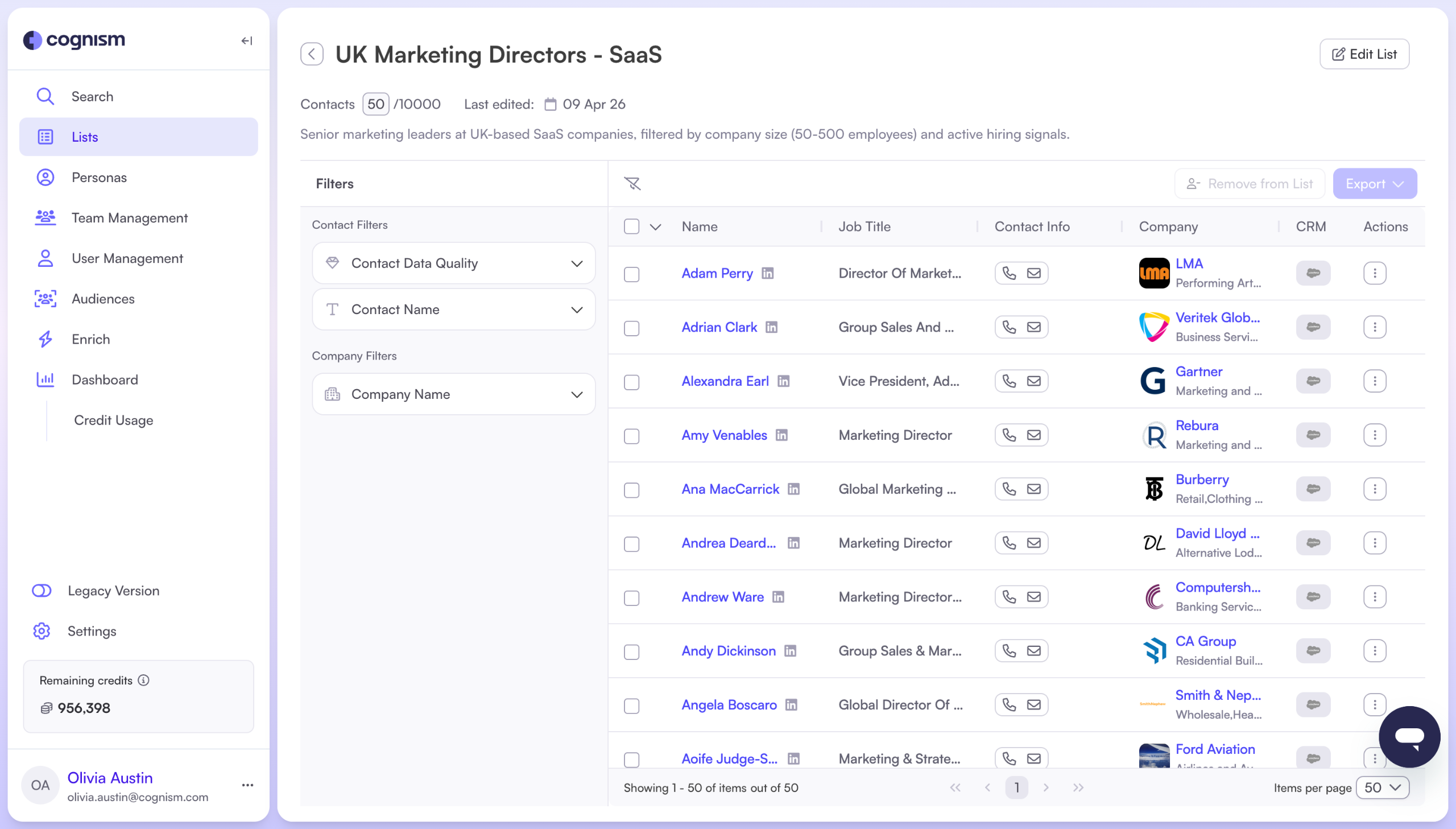
Within a list, you can:
- View contact name, job title, company, and contact details
- See whether a contact already exists in your CRM
- Edit the list name or description
- Remove contacts using the Actions menu
- Export the list to CSV or sync it to your CRM
Add contacts to a list using the Cognism Chrome extension
You can also add contacts to a list using the Cognism Chrome extension.
The extension works on:
- LinkedIn profiles
- Company websites
- Supported CRM platforms
- Open a contact profile (for example, on LinkedIn).
- Open the Cognism Chrome extension.
- Select Add to list next to the Export button.
- Choose an existing list, or create a new one.
- Confirm your selection.
You will see a confirmation message when the contact has been added.
The contact will appear in the list within the Cognism web app.
Expected result
You have created a list and added contacts to it from search results or the Chrome extension.
Your list is ready to be reviewed, exported, or synced to your CRM.