The Customer Onboarding Assistant guides you through the key settings you need to configure when you first start using Cognism. It helps you set up your account, define who you want to target and configure the features that improve search and prospecting.
The onboarding experience is designed for account admins and takes approximately five minutes to get started.
Complete the onboarding checklist
After you create your password, complete your profile and accept the Terms and Conditions, Cognism takes you directly into the platform. You do not need to log in again.
For Admin users, the Customer Onboarding Assistant opens with a checklist of the key setup tasks for your account:
- Invite users
Add your team members to your Cognism account..
- Review compliance controls
Configure controls such as Do Not Call (DNC) and location restrictions based on your requirements.
- Configure intent
If your package includes intent, configure Company Surge Intent to use intent signals in your searches. If you have a Standard package, you can see an option to upgrade.
- Select technographics
Choose the technologies that are relevant to your target market. These selections help improve the quality of your searches.
- Create personas
Create personas for the contacts you want to find. You can assign personas to specific users or team members so Cognism can use them to surface recommended contacts and populate saved filters.
- Connect integrations
Connect your CRM or sales engagement platform so you can send exported data directly to the tools your team uses.
Select a checklist item to open the relevant settings page and complete the configuration. Your progress is saved as you work through the checklist.
What happens when you complete onboarding?
The checklist remains available while you complete your setup. Once all required tasks are complete, the onboarding experience is no longer needed.
After configuring your account, you can start searching for contacts, build lists and export data using your configured settings.
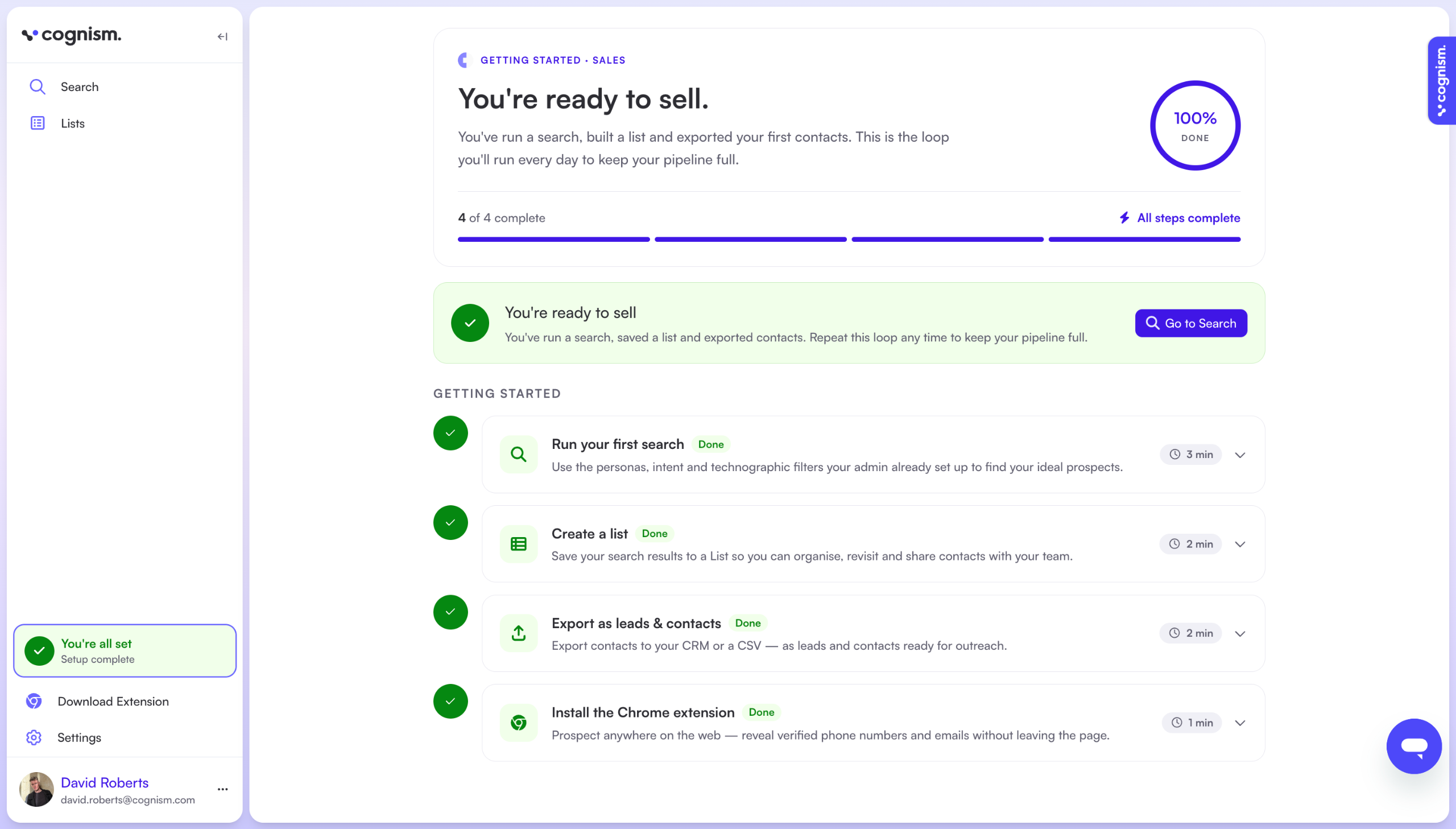
For Admin Users, a complete checklist looks like this:
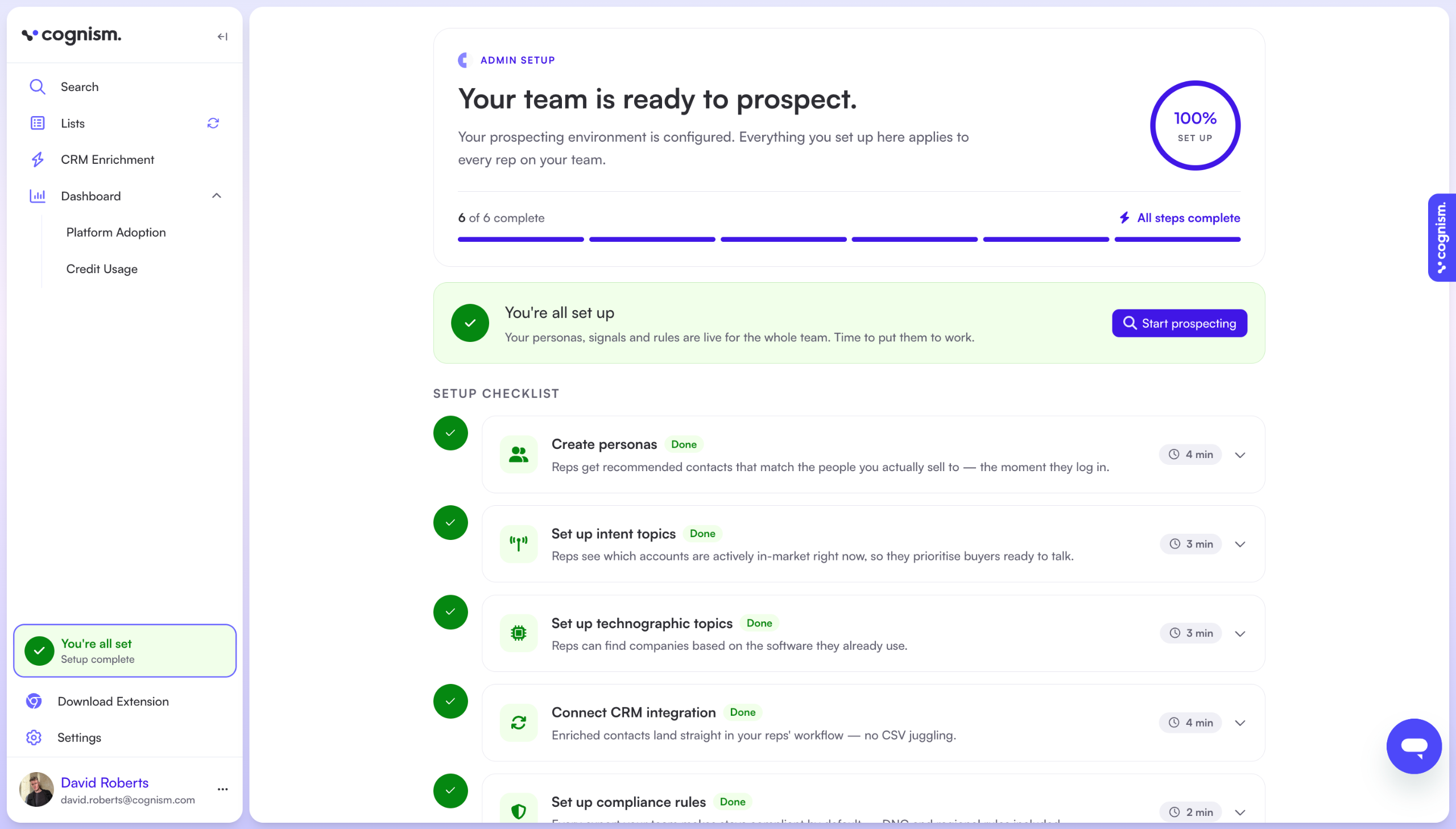
And for Sales Users they have a reduced set up requirement and see this: