
Important: This article relates to our Legacy platform (Prospector)
As of April 16th, Cognism has launched a brand new core sales prospecting platform. Most articles in this Help Centre now refer to that new experience.
How to tell if this article is for you: Look at the top left-hand corner of your web app.
If you see the Prospector logo: You are on the Legacy platform - this article is correct for your version.
If you do NOT see "Prospector": You are on the new Cognism platform. Please use the link below to find the updated version of this guide.
View the updated version of this article here.
You can decide how records should be exported and how records should be updated in your CRM. Here you have options to configure different actions when a lead, contact, or account is being exported or synced to Salesforce. The data synchronization is also managed in this configuration area.
Go to User Avatar> Integrations > Salesforce > Configure.
Info
Field Mapping settings are only available to the Cognism Admin user and changes will affect all users.
Jump to a section
Data Import
The Data Import tab will show you information about your Salesforce Data Import. Here you can see:
- Whether the data sync is enabled or disabled
- When the last update occurred
- Details about the data imported such as the number of Contacts, Leads and Accounts imported along with the import date, who the import was initiated by, and the Organization name (indicates whether it is a sandbox or production instance)
Export Rules
Within this tab, you can set Export Rules for users. This includes:
- Allow users to create new leads, contacts, and accounts.
- Allow users to update existing leads, contacts, and accounts.
- Prevent an export if the Contact can't be associated with an Account.
These settings allow you to keep your Salesforce CRM well organised.
Field Mappings
Field mapping allows you to specify what Cognism data or custom values will enter into your Salesforce when new or existing data is exported from the Cognism Web Application or Chrome Extension.
Expand the Lead, Contact or Account accordion to map the Cognism fields to your Salesforce fields.
To add a field, scroll down within the accordion and click + Add Field.
Selecting New field will add a field from the list of available Cognism fields which you can map to a field in Salesforce.
A Static Field is a custom input that is mapped to a specific field in your CRM. This input will not change upon export.
For example lead source - we recommend creating a custom field “cognism_source” to map to in your lead and contact object.
Click Save Changes within the accordion to save all the changes you’ve made.
Info
The Company Revenue field does not convert the currency when mapped to your Salesforce field. E.g. if your revenue field in Salesforce is set as GBP, all values will be mapped as unconverted GBP. ($100,000 → GBP 100,000)
Update Rules
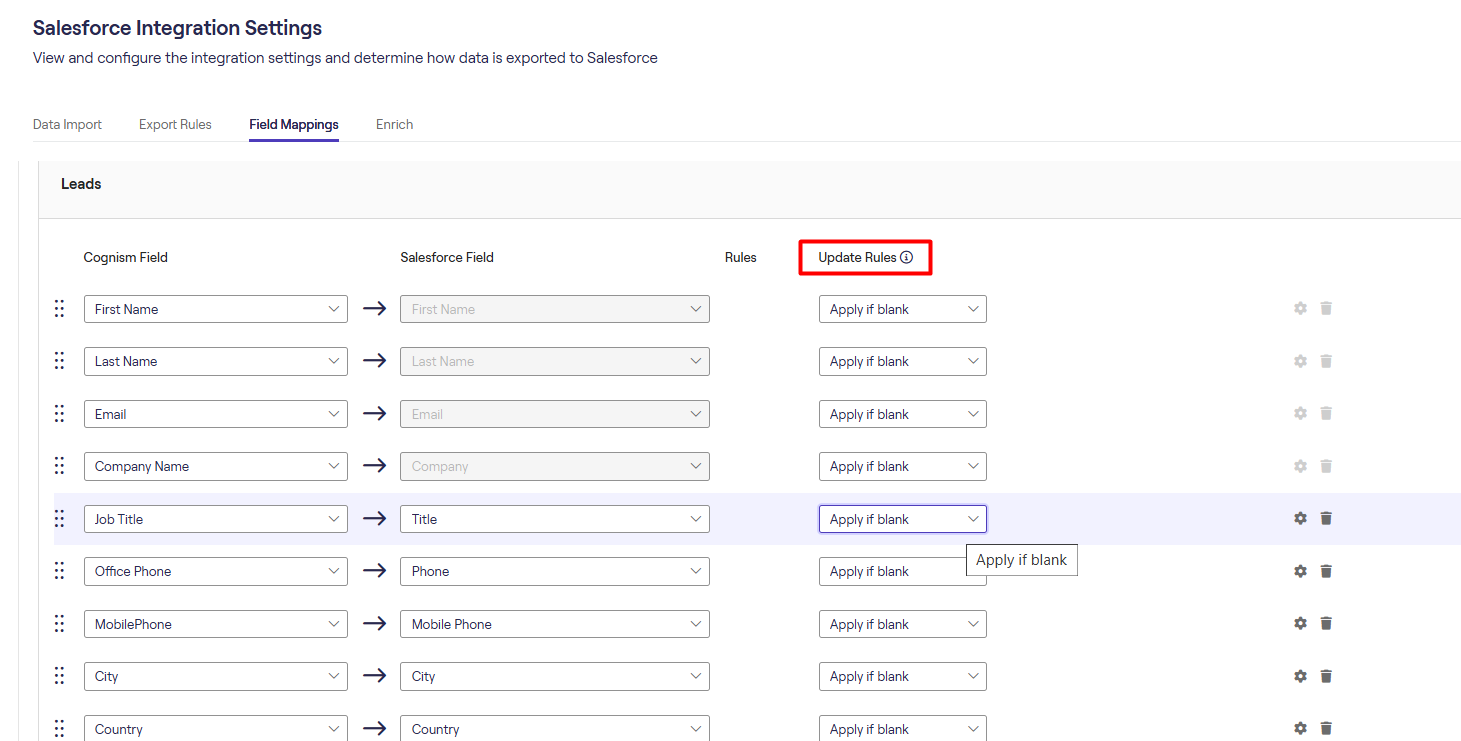
In line with each mapping field is an update rule. When data is being mapped into Salesforce, you have the option to configure an Update Rule. Cognism data can be applied if the datapoint is blank in your CRM or you can choose to overwrite data points with Cognism Data every time you export/sync to Salesforce.
Export Settings
The Export Settings are applicable for exports from the Cognism Chrome Extension to Salesforce. When exporting a record from the Chrome Extension, users have the ability view and edit all data points that will be exported for the record:
To modify visibility and editability for the fields, click the Settings cog inline with the mapping field. You can toggle the behaviour of an export for individual mappings with the following options:
- Read Only Option - If enabled, user will not be able to make any changes to this field.
- Is Visible Option - If enabled, user will be able to see this field in the edit during export.